

The question isn’t “ChatGPT or Notion AI?” It’s “ChatGPT or Notion AI for what?”
Most content creators approach the ChatGPT vs. Notion AI question like they’re choosing between competing tools. They’re not.
They’re designed for completely different moments in your workflow, and confusing those moments is why you end up with 12 browser tabs open, three half-finished drafts, and no idea where your best ideas actually live.
Here’s the real problem: You’re probably using ChatGPT for things Notion AI does faster, and Notion AI for things ChatGPT does better. Then you wonder why both feel clunky.
ChatGPT excels when you’re starting from nothing- generating first drafts, exploring angles, expanding rough notes into full sections. It’s a thinking partner for messy, exploratory work where you don’t know what you need yet.
Notion AI excels when you’re already inside your workspace- tightening sentences, fixing tone, generating summaries, reformatting content you’ve already created. It’s a speed tool for refinement, not generation.
The confusion happens because both can do what the other does. ChatGPT can edit. Notion AI can generate drafts. But just because a tool can do something doesn’t mean it should.
When you match the tool to the actual moment in your workflow, everything changes. The chatgpt vs notion ai distinction is simple : ChatGPT is for creation from zero. Notion AI is for refinement in context. Used in the right sequence, this chatgpt vs notion ai combo saves 30-60 minutes per content session by eliminating the back-and-forth.
This guide breaks down exactly when to use ChatGPT vs Notion AI – and how to stop losing time by using the wrong one at the wrong moment.
Table of Contents
The AI tools workflow moments framework: Match each tool to its phase
The key to resolving the ChatGPT vs Notion AI question is understanding ai tools workflow moments – matching each tool to the specific phase of your work.
| Workflow Moment | Right Tool | Why |
|---|---|---|
| Blank page, no direction | ChatGPT | Handles ambiguity and generates structure from nothing |
| Draft exists, needs tightening | Notion AI | Context-aware editing without copy-paste friction |
| Exploring 10 different angles | ChatGPT | Conversational divergence; iterates fast through options |
| Formatting existing content | Notion AI | One-click commands understand doc context |
| Research + synthesis | ChatGPT | Long context window for pulling from multiple sources |
| Quick summaries of your notes | Notion AI | Lives in workspace; scans document hierarchy |
Understanding migration friction: The hidden cost of switching tools
The hidden cost nobody talks about: the time spent moving content between tools.
When you generate a draft in ChatGPT, you have to copy it, paste it into your workspace, then spend 60+ seconds reformatting headers, fixing bullet points, and adjusting spacing.
That’s migration friction. It adds up fast.

A creator I know in Austin tracked this for a week. Every time he moved content from ChatGPT to Notion, he logged the time. Average: 90 seconds per transfer. He did this 23 times that week. That’s 35 minutes spent on copy-paste.
Not writing. Not editing. Just transferring.
Notion AI eliminates this entirely by working directly on the page. No copying. No pasting. No reformatting. The draft stays in one place, and the AI edits it there.
That’s the core ChatGPT vs Notion AI difference. ChatGPT is fast at generating. Notion AI is fast at refining. The workflow moment determines which speed matters more. The workflow moment determines which speed matters more.
ChatGPT for content creation: 4 clear use cases
ChatGPT for content creation functions as your ‘information explorer.’ It’s built for the discovery phase – when you’re figuring out what to say, not how to say it.
Use case 1: First draft generation – starting from zero
Scenario: You have a topic but no outline, no structure, no clear angle yet.
Why ChatGPT: Handles the ambiguity of “I want to write about X but don’t know what to say.”
Example prompt:
“Write an 800-word first draft on [topic] for [audience]. Structure: intro hook, 3 key points with examples, conversational CTA. Tone: founder sharing lessons, not consultant lecturing.”
What you get: A rough draft you can shape. Not perfect, but 80% there.
Time saved: 30-45 minutes compared to staring at a blank page.
My friend Jake in Seattle uses this every Monday morning. Gives ChatGPT a topic and audience. Gets a draft back in 30 seconds. Spends the next 20 minutes making it sound like him instead of spending an hour figuring out where to start.
Use case 2: Idea expansion – from bullets to full paragraphs
Scenario: You have 3 bullet points and need them to become 3 full paragraphs.
Why ChatGPT: Excels at elaboration and adding context to sparse ideas.
Example prompt:
“Expand these 3 bullets into full paragraphs with real-world examples and data: [paste bullets]. Keep entrepreneur voice, avoid academic tone.”
What you get: Fully developed sections with examples embedded.
Time saved: 20 minutes per section.
A creator in Denver does this for every article. Outlines the structure in bullets, feeds it to ChatGPT, gets back developed sections. Then moves to Notion to refine.
Use case 3: Angle exploration – finding the best approach fast
Scenario: You know the topic but can’t decide which angle will resonate best.
Why ChatGPT: Can generate 5-10 different perspectives in one conversation.
Example prompt:
“Generate 8 different angles for content on [topic]. For each: hook, unique value prop, target pain point, why it converts. Rank top 3.”
What you get: Multiple approaches to choose from instead of committing to the first idea.
Time saved: An entire brainstorming session (45-60 minutes).
Sarah in Portland uses this before writing anything significant. Asks for 10 angles, picks the one that feels right, moves forward. Saves her from writing 800 words only to realize the angle was weak.
Use case 4: Research synthesis – connecting multiple sources
Scenario: You have 6 articles or documents and need to pull key points into a coherent narrative.
Why ChatGPT: Handles long context windows well and can connect disparate sources.
Example prompt:
“Synthesize these 6 sources on [topic]: [paste excerpts or summaries]. Pull out key insights, note contradictions, provide actionable takeaways with attribution.”
What you get: A synthesized summary with proper attribution.
Time saved: 45-60 minutes of manual note-taking and cross-referencing.
The o1 reasoning models (ChatGPT’s advanced tier) are particularly strong here. They can analyze complex research, find logical coherence across sources, and identify what’s missing – the “negative space” in the research.
When ChatGPT is the WRONG choice for content creation
Don’t use ChatGPT for:
Editing content that’s already in Notion. You’ll waste time copying it to ChatGPT, getting the edit, then pasting it back. Use Notion AI’s highlight-and-command feature instead.
Quick tone adjustments. Notion AI does this in two clicks. ChatGPT requires re-prompting, waiting, and copy-pasting.
Formatting tasks. Moving formatted content from ChatGPT to your workspace creates friction. Headers break, bullets misalign, tables don’t transfer cleanly.
A guy I know in Phoenix spent 20 minutes reformatting a ChatGPT-generated table in Notion. Once. Never did it again. Now he uses Notion AI for any formatting task. If you’re still figuring out which tools belong in your stack, read the guide on choosing your minimal stack for calm content creation.
Notion AI for editing content: 5 clear use cases
Notion AI for editing content functions as your ‘integration champion.’ It’s built for the production phase – when you know what to say and need to make it polished.
Use case 1: In-document editing – tighten prose without leaving Notion
Scenario: Your draft is done but sentences feel clunky or unclear.
Why Notion AI: Works directly on your text without leaving the workspace.
Example command: Highlight the paragraph → Click “Improve writing”
What you get: Tightened prose without copy-paste friction.
Time saved: 10-15 minutes of manual editing per document.
This is Notion AI’s biggest strength. The draft stays on the page. You highlight, command, done. No switching apps. No reformatting.
Lisa in Boston edits every draft this way. Writes rough, highlights clunky sections, runs “Improve writing” until it reads clean. Entire editing phase happens in one place.
Use case 2: Tone adjustments – one click to shift voice
Scenario: Your draft is too formal for your audience, or too casual for the context.
Why Notion AI: One-click tone shifting without rewriting from scratch.
Example commands:
- “Make more conversational”
- “Make more professional”
- “Simplify for beginners”
What you get: Instant rewrite in the new tone.
Time saved: 15-20 minutes of manual rewriting.
A creator in Seattle uses this constantly. Writes everything in her natural voice (casual, direct), then uses Notion AI to adjust tone based on where it’s publishing. LinkedIn version gets “Make more professional.” Newsletter version stays casual.
Use case 3: Content summarization – key takeaways in seconds
Scenario: You have long meeting notes or research docs that need an executive summary.
Why Notion AI: Understands document structure and hierarchy natively.
Example command: “Summarize this in 3 bullet points”
What you get: Key takeaways without re-reading everything.
Time saved: 5-10 minutes per document.
My friend in Chicago does this after every client call. Voice records the meeting, transcribes it into Notion, runs “Summarize in 3 bullets,” gets action items instantly.
Use case 4: Quick formatting – structure a wall of text instantly
Scenario: You have a wall of text that needs structure- headers, bullets, sections.
Why Notion AI: Understands your Notion formatting preferences and applies them automatically.
Example command: “Break this into sections with headers”
What you get: Structured document instantly.
Time saved: 10 minutes of manual formatting.
Jake in Denver pastes raw content from anywhere (emails, chats, voice notes), then tells Notion AI to structure it. Gets back a clean doc ready for further work.
Use case 5: Action item extraction – pull next steps from any document
Scenario: You have a brainstorm document or meeting transcript and need to pull out next steps.
Why Notion AI: Can scan and categorize existing content quickly.
Example command: “Create action items from this”
What you get: Task list ready to assign or add to your project tracker.
Time saved: 5 minutes of manual extraction.
A team lead in Austin uses this for every project kickoff. Brainstorms in Notion, runs “Extract action items,” gets a task list, assigns owners. Entire workflow stays in one tool.
When Notion AI is the WRONG choice for editing content
Don’t use Notion AI for:
Starting from zero. It needs existing content to work with. If you’re staring at a blank page, Notion AI can’t help you break through. Use ChatGPT to generate the first draft.
Deep research synthesis. Notion AI isn’t built for analyzing six PDFs and connecting complex ideas across sources. ChatGPT’s long context window handles this better.
Complex multi-step generation. If you need the AI to iterate through multiple versions or explore vastly different approaches, ChatGPT’s conversational interface handles that better than Notion’s command-based system.
The smart ChatGPT vs Notion AI combo strategy
The most effective ChatGPT vs Notion AI workflow uses both tools in sequence, not in competition. One tool per stage. No switching back and forth.
The 3-stage content process: Generate, refine, publish
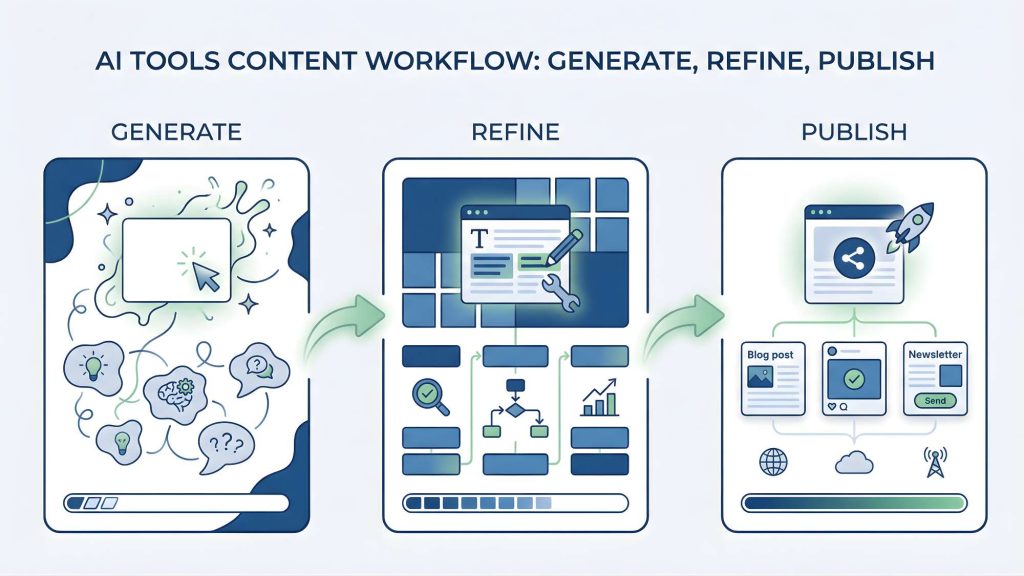
| Stage | Tool | What You Do | Output |
|---|---|---|---|
| 1. Generate | ChatGPT | Create first draft, explore angles, synthesize research | Raw draft (80% complete) |
| 2. Refine | Notion AI | Tighten sentences, adjust tone, add structure, format | Polished draft (95% complete) |
| 3. Publish | Native platform | Final human tweaks, add personal touches | Published content |
The key rule: One tool per stage. Never switch back and forth.
When you finish the generation phase in ChatGPT, you’re done with ChatGPT for that piece. Move it to Notion. All refinement happens there. Don’t go back to ChatGPT to tweak one sentence. That’s how you waste an hour on a task that should take 20 minutes.
“How the ChatGPT vs Notion AI workflow works in practice
Monday morning: Writing a LinkedIn post
Stage 1 (ChatGPT, 5 minutes):
Prompt: “Write a 500-word LinkedIn post about [topic]. Hook: surprising stat. Body: 3 lessons learned. End: question for engagement. Tone: founder sharing real experience.”
Get draft back. Copy to Notion.
Stage 2 (Notion AI, 10 minutes):
Highlight intro → “Make more conversational”
Highlight body → “Improve writing”
Command: “Break into short paragraphs for mobile reading”
Stage 3 (LinkedIn, 5 minutes):
Paste into LinkedIn. Add one personal sentence at the top. Check formatting. Schedule.
Total time: 20 minutes. Output: One polished post.
A creator in Phoenix uses this exact process three times per week. Used to take her 90 minutes per post. Now takes 25. Same quality. Less friction.
The handover prompt: Lock your voice before moving to Notion
To make the transition seamless, use a “voice lock” prompt in ChatGPT to ensure the draft matches your style before it hits Notion.
Example:
“Analyze this style guide: [paste 2-3 examples of your writing]. Now write a 600-word post on [topic] in that exact style. Use short paragraphs, direct language, and one example per point.”
This ensures the ChatGPT draft is close to your voice, so Notion AI only needs to refine, not rewrite.
Sarah in Seattle built a style guide with 5 example posts. Feeds it to ChatGPT with every request. Gets back drafts that sound like her, not like generic AI.
Common ChatGPT vs Notion AI mistakes and how to avoid them
Mistake 1: Editing in ChatGPT when content is already in Notion
What’s happening: You have a draft in Notion. Instead of using Notion AI to edit it, you copy it to ChatGPT, ask for edits, then paste it back.
Why it’s wrong: Creates a copy-paste loop that wastes 60-90 seconds per iteration.
The fix: Highlight the section in Notion → Use Notion AI’s “Improve writing” or “Make more [tone]” commands.
One iteration in Notion AI: 10 seconds. One iteration via ChatGPT: 90 seconds. Do this 5 times per draft, you’ve wasted 6 minutes on pure friction.
Mistake 2: Starting drafts in Notion AI
What’s happening: You try to use Notion AI to generate a first draft from a blank page.
Why it’s wrong: Notion AI needs content to work with. It’s not designed for creation from zero.
The fix: Start in ChatGPT. Get to 80%. Move to Notion. Refine with Notion AI.
Jake in Denver tried to force Notion AI to generate blog posts from scratch. Got generic, weak outputs. Switched to ChatGPT for generation, Notion AI for refinement. Quality jumped immediately.
Mistake 3: Using ChatGPT for quick tone shifts
What’s happening: You have a draft, want to make it more casual, so you paste it into ChatGPT and prompt for a tone change.
Why it’s wrong: Notion AI does this in two clicks with no copy-paste.
The fix: Highlight text → “Make more conversational” or “Make more professional.” Done in 5 seconds.
Sarah in Portland used to do this constantly. Wasted 5 minutes per tone shift. Now uses Notion AI. Gets the same result in 10 seconds.
Mistake 4: Using both tools for the same task “To compare”
What’s happening: You generate a draft in ChatGPT and Notion AI to see which is better.
Why it’s wrong: Doubles your work instead of improving quality. Both will give you usable outputs. Pick one based on workflow moment and commit.
The fix: Use the decision tree. If you’re starting from zero, ChatGPT. If you have content, Notion AI. Don’t compare.
A creator in Austin used to do this for every post. Took twice as long, didn’t improve the output. Stopped comparing, picked based on workflow moment, cut creation time in half.
When to use ChatGPT vs Notion AI: Quick decision tree in 10 seconds
Use this to decide in 10 seconds which tool to open.
Start here: Do you have ANY content already?
NO → Use ChatGPT
You need generation, not refinement. Open ChatGPT, generate your first draft.
YES → Is the content currently in Notion?
YES → Use Notion AI
It’s already in your workspace. Use Notion AI to refine it without moving it.
NO → What do you need?
Major rewrite or exploring new angles → ChatGPT
Significant changes or creative exploration. Move to ChatGPT, generate new version, bring back to Notion.
Quick edit, formatting, or tone shift → Move to Notion, then use Notion AI
Minor refinement. Paste into Notion once, refine with Notion AI.
The pattern:
Generation phase (starting from zero) = ChatGPT
Refinement phase (working with existing content) = Notion AI
Publication phase (final touches) = Native platform
A creator in Boston printed this tree and taped it to her monitor. Eliminated the “which tool should I use?” question. Just follow the tree. Saves 10 minutes per session on decision fatigue alone.

The Real Shift
The question was never “Which AI tool is better?”
The question is “Which tool is better for this specific moment in my workflow?”
In the ChatGPT vs Notion AI debate, ChatGPT is faster at raw generation and Notion AI is faster at refinement. Using the right tool at the right time eliminates the friction that makes both feel slow.. Using the right tool at the right time eliminates the friction that makes both feel slow. Using the right tool at the right time eliminates the friction that makes both feel slow.
When you stop treating them as competitors and start treating them as sequential phases, content creation becomes predictable. You’re not guessing which tool to use. You’re following a system.
Generate in ChatGPT. Refine in Notion AI. Publish in your platform. One tool per stage. No switching back and forth.
That’s the real ChatGPT vs Notion AI content creation advantage – going from 90 minutes per piece to 25 minutes without sacrificing quality. Not by working faster. By eliminating the friction of using the wrong tool at the wrong time.
Ready to choose the right AI tools for each workflow moment?
Now that you understand the chatgpt vs notion ai distinction, here are your next steps :
- Get the complete framework in the guide to choosing AI tools for content creation
- Build your minimal tool stack strategy for calm content creation